
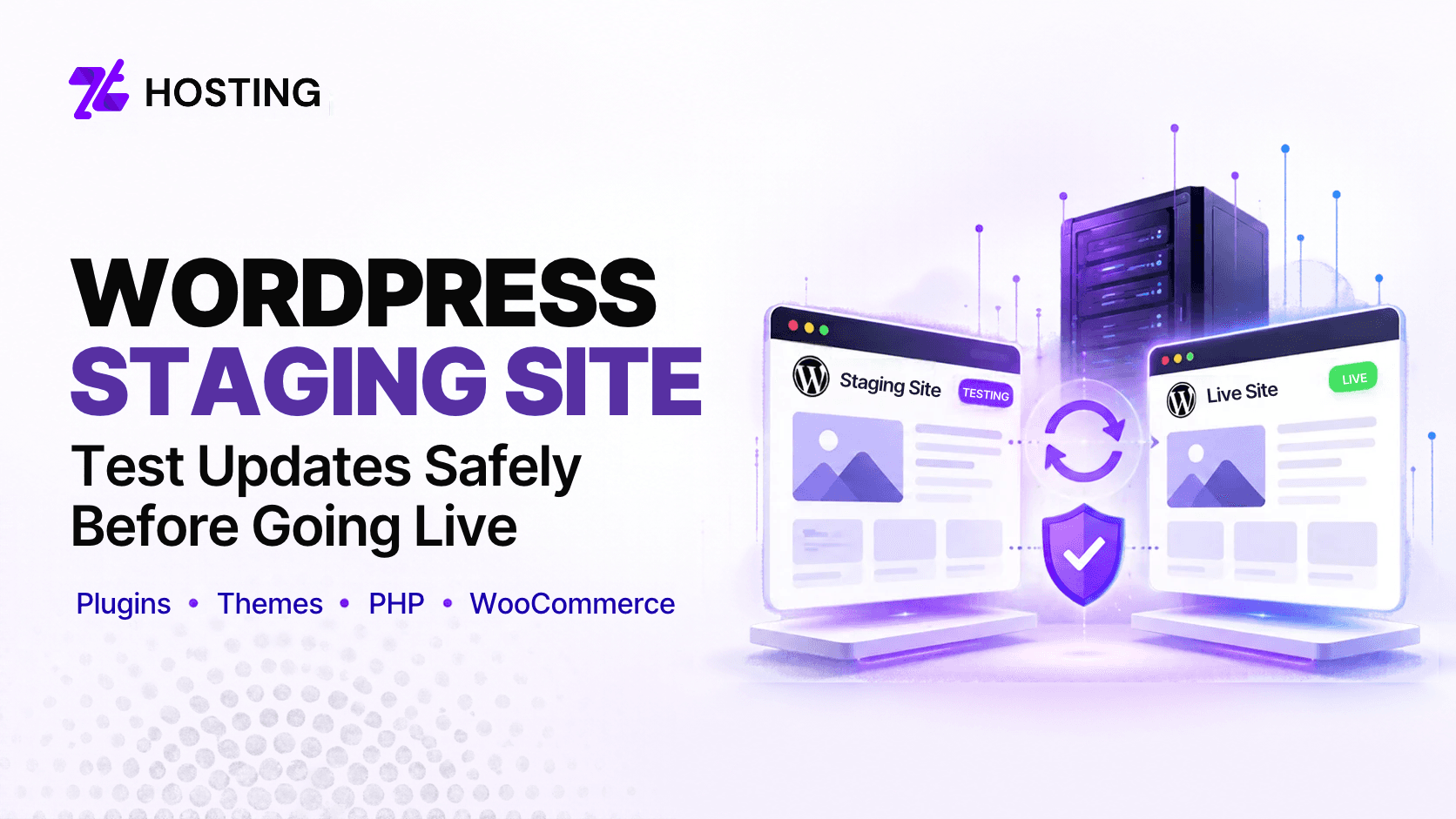
WordPress Staging Site: How to Test Updates Without Breaking Your Live Website
A WordPress staging site is a separate, non-production copy of your website where you can test updates and changes before applying them to the live site.
So, instead of installing a major plugin update, changing PHP versions or modifying your WooCommerce store directly in production, you can first test the change in a controlled environment. If something breaks, visitors and customers are not immediately affected.
A staging environment does not eliminate every deployment risk, but it gives you a safer place to identify compatibility problems before they reach the live website.
What Is a WordPress Staging Site?
A WordPress staging site is a working copy of your production website used for testing. It normally contains enough of the live site’s files, database and configuration to reproduce how the website behaves, while remaining separate from real visitors.
The important distinction is that staging is not meant to become another public version of your website. It is a testing environment.
A useful WordPress staging environment should allow you to check whether changes affect:
- Page layouts
- Plugins
- Themes
- Forms
- Login functionality
- WooCommerce
- PHP compatibility
- Database-driven features
- Redirects
- Performance
- Error logs
This makes staging particularly useful when a change affects more than one part of WordPress.
When Should You Use a WordPress Staging Site?
Not every small content edit needs a staging workflow. Changing a spelling mistake in a blog post, for example, usually does not justify copying the entire site. Staging becomes more valuable when a change can affect website functionality.
WordPress Core Updates
Major WordPress changes can interact with your active theme, plugins and custom code. Testing the update first can reveal compatibility issues before production is changed.
Plugin and Theme Updates
Plugins and themes should be kept updated, but updates can occasionally introduce conflicts or change existing behaviour. WordPress itself recommends maintaining current backups before updating plugins because problems can occur during the update process.
For an important business site, testing significant plugin or theme changes on staging adds another layer of protection.
PHP Version Changes
Changing PHP versions affects the environment in which WordPress and its plugins execute. Older themes, plugins or custom code may not behave correctly on a newer PHP version. A staging environment lets you identify these problems before altering production.
WooCommerce Changes
Testing becomes particularly important for online stores. Payment methods, checkout behaviour, shipping rules, tax configuration and WooCommerce extensions can directly affect transactions. Use test or sandbox payment modes where available rather than creating real transactions simply to test staging.
Major Design or Configuration Changes
Staging is also useful when changing templates, navigation, caching configurations, security settings or other components that could affect multiple parts of the site.
Should You Test WordPress Plugin Updates on Staging?
For significant plugins or business-critical websites, you should. A plugin update may work correctly by itself but conflict with another plugin, the active theme, PHP version or custom functionality. On staging, you can update the plugin and test the functions that depend on it before introducing the change to production.
Prioritize staging tests for plugins related to:
- eCommerce
- Membership systems
- Forms
- Security
- Caching
- SEO
- Page builders
- Authentication
- Payment processing
A simple update completing successfully does not prove that every dependent feature still works. Test the actual user journey.
Staging vs Live WordPress: What Should You Be Careful With?
A staging site begins as a copy of production, but the two environments can quickly become different. This matters most on dynamic websites.
Imagine creating a staging copy of a WooCommerce store on Monday. During the next two days, the live site receives:
- New orders
- Customer registrations
- Contact-form submissions
- Product changes
- Reviews
Meanwhile, you make design and plugin changes on staging. If you later overwrite the complete live database with the older staging database, those newer production records could be lost.
For this reason, pushing staging to live should not automatically mean replacing everything. Understand what changed on staging and what changed on production before synchronizing files or databases. The exact deployment method depends on the hosting platform, website architecture and nature of the changes.
What Should You Test Before Pushing Staging to Live?
A successful homepage test is just not enough. Before releasing changes, use a practical checklist.
Key Pages
Open the homepage, important landing pages, blog content, product or service pages and any custom templates affected by the change.
Forms
Submit contact, enquiry, registration and other important forms using test data. Confirm both the submission and any expected notification workflow.
WordPress Login and User Roles
Check administrator access and, where relevant, customer, subscriber, editor or membership functionality.
WooCommerce Checkout
For stores, review:
- Cart
- Checkout
- Coupons
- Shipping calculations
- Account pages
- Transactional emails
- Payment integration in test mode
Images and Front-End Assets
Look for missing images, broken stylesheets, JavaScript errors or layout problems across desktop and mobile views.
Redirects and Important URLs
Confirm that URLs still resolve correctly and important redirects continue to work after structural changes.
Errors and Performance
Review application or server errors available to you and look for obvious changes in page performance. The objective is not simply to prove that staging loads. It is to verify that the important user journeys still work.
Can a WordPress Staging Site Appear in Google?
It potentially could if the staging environment is publicly accessible and search engines are allowed to discover and index it. That can create an unwanted duplicate of your production content. A staging environment should therefore have appropriate indexing and access controls. Where supported, password protection is particularly useful because it prevents unauthorized users and search crawlers from accessing the environment.
A noindex directive can also tell Google not to include accessible staging pages in search results. Google’s guidance on blocking search indexing explains that noindex must be visible to the crawler to work. A page blocked only through robots.txt can prevent Google from seeing the noindex directive itself.
Therefore, do not rely on robots.txt alone as the only staging-indexation safeguard. After creating staging, verify that your chosen protection is actually active. Before pushing changes to production, also confirm that a staging-only noindex rule has not accidentally been carried onto the live website.
Is a Staging Site the Same as a Backup?
No it is not. A staging site and a backup serve different purposes.
Staging provides an environment for testing changes.
A backup provides a recovery copy that can be used if data needs to be restored.
Creating a staging site does not guarantee that you can recover production after a failed deployment. Before significant production changes, maintain an appropriate recovery point for the live website and understand how it would be restored if necessary. This distinction matters because staging helps you reduce deployment risk, while backups help you recover when something still goes wrong.
How to Move Changes From Staging to Live Safely
After testing is complete, plan the production release rather than assuming every staging environment has the same one-click deployment process.
Before deployment:
- Confirm the tests passed.
- Identify exactly what changed.
- Check whether production received new data after staging was created.
- Create an appropriate recovery point.
- Choose a suitable deployment window.
- Apply or synchronize the approved changes.
- Test the live website again.
After deployment, check the same critical functions you tested on staging. If your task involves moving the entire WordPress installation to another server rather than testing ongoing updates, that is a different workflow. To know more on how to migrate your website, see ZTHosting’s WordPress migration guide for the migration process.
Choosing WordPress Hosting With Staging Support
If staging is important to your development or maintenance workflow, consider it when evaluating your WordPress hosting environment. The current ZTHosting WordPress Hosting offering lists WordPress staging among its available WordPress-focused features.
Always review the current hosting page before purchasing because plan features and implementation details can change. The important consideration is not simply whether the word “staging” appears in a feature list. Understand how staging fits into your testing, deployment and recovery process.
Conclusion
A WordPress staging site gives you a controlled environment for testing potentially disruptive changes before they affect your live website. Use staging for important plugin and theme updates, PHP changes, WooCommerce modifications, design changes and other work that could affect production functionality.
The most important part is the process: create the staging copy, protect it from unwanted indexing, test the functions that matter, preserve new production data, maintain a recovery point and verify the live website again after deployment.
Staging cannot remove every deployment risk, but when combined with careful testing and reliable backups, it makes WordPress changes considerably easier to manage.
Frequently Asked Questions
1. What is a WordPress staging site?
A WordPress staging site is a non-production copy of a website used to test updates, code, themes, plugins and configuration changes before applying them to the live website.
2. Should I test WordPress plugin updates on staging?
For important plugins or business-critical sites, staging provides a safer way to identify compatibility problems before updating production.
3. Can a staging site appear in Google?
Yes. A publicly accessible staging site can potentially be discovered and indexed if appropriate controls are not applied. Use supported access and indexing controls and verify them after staging is created.
4. What should I test before pushing staging to live?
Test important pages, forms, login functionality, eCommerce flows, images, redirects, errors and any functionality affected by the change.
5. Is staging the same as a website backup?
No. Staging is for testing changes. A backup is for recovery. A safe change-management workflow may use both.