
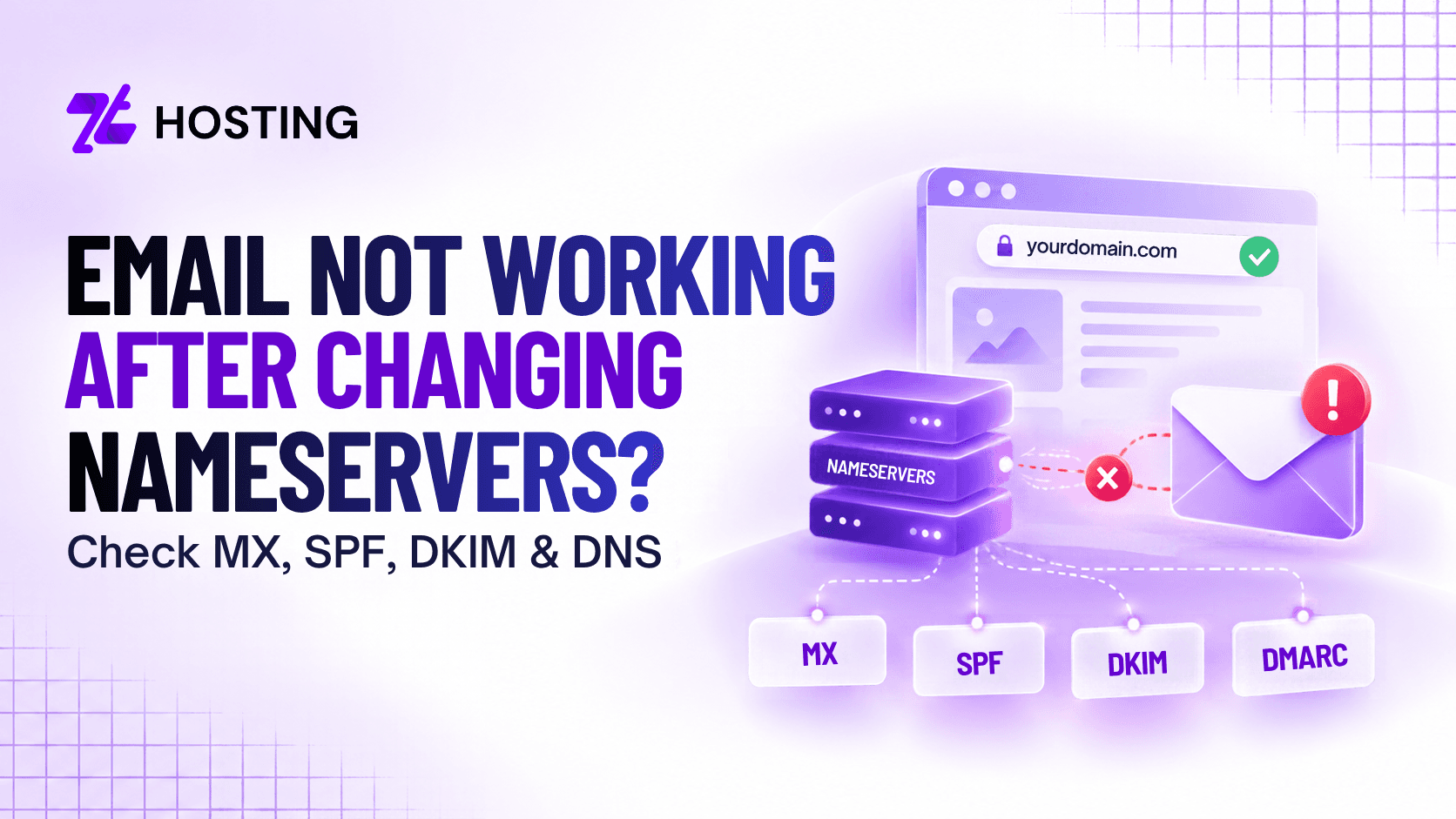
Email Stopped Working After a Nameserver Change? Check MX, SPF, DKIM & DNS First
If your email stopped working after changing nameservers, the mailbox itself may not be the problem. A nameserver change determines which DNS zone becomes authoritative for your domain. If the new zone is missing the correct email records, your website may continue working while incoming or outgoing email fails.
The first records to check are your MX records, followed by the SPF, DKIM, DMARC, CNAME or TXT records required by your email provider. Before changing mailbox settings or rebuilding email accounts, verify the DNS configuration.
Why Did Email Stop After Changing Nameservers?
Nameservers tell DNS resolvers where to find the authoritative records for your domain. When you change nameservers, the internet begins using the DNS zone hosted by the new provider. Records stored only in the previous DNS zone are no longer authoritative once the switch takes effect.
This can create a common situation:
- The website A or CNAME record is copied correctly.
- The website begins loading normally.
- The MX and email-authentication records are not copied.
- Email stops working.
This often happens during a website migration, hosting-provider change, DNS-provider switch or CDN setup. The new authoritative zone must contain the records required by every service using the domain.
Do Nameserver Changes Affect MX Records?
Yes, indirectly it does. Changing nameservers does not delete the MX records stored at your old DNS provider. Instead, it changes which DNS provider the internet asks for those records.
If the old zone contained the correct MX records but the new authoritative zone does not, external mail servers may no longer know where to deliver email for your domain. That is why an MX record after a nameserver change should be one of the first things you verify when email suddenly stops working.
Check that the current MX records match the values supplied by your email provider, including:
- Mail-server hostname
- Priority
- Number of MX records
- Any required supporting records
Do not copy MX values from another company or tutorial. Different email providers use different configurations. For example, organizations using Google Workspace should follow Google’s official MX record setup documentation rather than treating those values as universal settings.
What Email DNS Records Should You Verify?
MX records control incoming mail routing, but other DNS records also affect email operation and authentication.
MX Records
MX records tell sending mail servers where messages for your domain should be delivered. If they are missing, incorrect or still pointing to an old mail server, incoming email can fail.
SPF
SPF is usually published as a TXT record. It identifies which systems are permitted to send email on behalf of your domain. If the SPF record disappears during a DNS change, receiving mail systems may no longer see the expected authorization information.
DKIM
DKIM allows outgoing mail to be digitally signed. Your email provider publishes a DKIM key through DNS, commonly using a TXT or CNAME record. If that record is missing from the new DNS zone, DKIM validation can fail.
DMARC
DMARC builds on SPF and DKIM and defines how receiving mail systems should handle authentication and alignment results. If you already use DMARC, make sure the relevant _dmarc TXT record exists in the new authoritative zone.
For a broader explanation of these technologies, see ZTHosting’s guide to email with your own domain. That article explains SPF, DKIM and DMARC in more detail. This guide focuses specifically on diagnosing email failures after a nameserver or DNS change.
How to Fix Email After Changing Nameservers
The fastest way to solve the problem is to troubleshoot in a fixed order rather than changing several settings at once.
1. Confirm the Authoritative Nameservers
First, verify which nameservers currently control the domain. If the domain still points to the old nameservers, changes made in the new DNS panel may not be active. If the new nameservers are already authoritative, records left only at the previous DNS provider will no longer control public DNS resolution.
2. Check the MX Records
Inspect the MX records currently returned for the domain and compare them with your email provider’s required settings.
Look for:
- Missing MX records
- Incorrect destinations
- Wrong priorities
- Old records from a previous mail provider
If your website works but email does not, MX is one of the most important places to investigate.
3. Compare the Full Email DNS Configuration
After verifying MX, compare the rest of the DNS zone with the current documentation from your email provider.
Check:
- SPF
- DKIM
- DMARC
- Provider-specific CNAME records
- Verification TXT records
- Mail-related subdomains where applicable
Not every platform uses the same combination of records, so use the settings for the service you actually use.
4. Check for Conflicting Records
Old records can remain in the new DNS zone after a migration. For example, you may have one MX record pointing to the previous hosting server and another pointing to your current email platform. Multiple MX records are not automatically incorrect, but they should match the provider’s intended configuration.
5. Allow for DNS Caching
DNS changes are not always visible everywhere immediately. Resolvers may continue using cached records until their TTL expires. Different services and networks can therefore begin seeing the new records at different times.
Avoid treating one fixed propagation time as a guarantee. Google, for example, notes that Workspace MX changes may take time to be recognized, but that is provider-specific guidance rather than a universal DNS rule.
6. Test Sending and Receiving Separately
Once the DNS records appear correct, test both directions.
Send:
- A message from an external mailbox to your domain
- A message from your domain to an external mailbox
If outgoing mail works but incoming mail does not, review MX routing closely. If incoming mail works but outgoing messages fail authentication checks, review SPF, DKIM and the sending configuration.
Can Your Website and Email Use Different Providers?
Yes. Your website and email do not need to be hosted by the same company.
A domain can use:
- A or CNAME records for website hosting
- MX records for a separate email provider
- TXT and CNAME records for email authentication
- Other records for subdomains or third-party services
For example, your website could remain on one hosting platform while your mailboxes use a dedicated email service. ZTHosting’s Email Hosting can be connected to an existing domain through the required email DNS records without requiring the website itself to move.
The important requirement is that the authoritative DNS zone contains the correct records for every service.
Website Moved but Email Stopped Working
This is especially common during website migrations. The website files and database are moved successfully, the nameservers are changed, and the site begins loading from the new host. Email then stops working because the mail service was supposed to remain elsewhere, but its DNS records were never recreated in the new zone.
In that case, the migration may not have damaged the mailbox at all. The DNS route to the mailbox changed. If you are planning a hosting move, use ZTHosting’s website migration guide to treat website files, databases, DNS and email as separate migration checks.
How to Prevent Email Problems Before a Nameserver Change
The safest approach is to copy the complete DNS zone before changing nameservers. Document important records such as:
- A and AAAA records
- CNAME records
- MX records
- TXT records
- SPF
- DKIM
- DMARC
- Verification records
- Important subdomains
Before the switch, confirm where each service will remain after migration. Ask:
- Where will the website be hosted?
- Where will email be hosted?
- Which DNS provider will become authoritative?
- Is the email service moving or staying where it is?
- Which records must be recreated?
After changing nameservers, verify the website and email separately rather than assuming that one working service means the whole DNS configuration is correct.
Conclusion
If your email stopped working after changing nameservers, check DNS before changing mailbox or server settings. Confirm the authoritative nameservers, verify the MX records in the active DNS zone and compare the remaining email records with your provider’s current configuration.
Then test incoming and outgoing email separately. The most reliable way to avoid this issue is to document the full DNS zone before every nameserver or hosting change. A website and email service can remain with different providers, but the authoritative DNS zone must contain the correct records for both.
Frequently Asked Questions
1. Why did my email stop working after changing nameservers?
The new nameservers may be serving a DNS zone that does not contain the MX or other records required by your email provider. The mailbox can still exist even though email is no longer routed to it correctly.
2. Do nameserver changes remove MX records?
No. They do not delete records stored at your old DNS provider. However, once the new nameservers become authoritative, the old DNS zone is no longer used for normal public lookups.
3. Can my website work while email is broken?
Yes. Websites and email rely on different DNS records. An A or CNAME record can make the website work while missing or incorrect MX records prevent email delivery.
4. What DNS records should I verify for email?
Start with MX records, then check the SPF, DKIM, DMARC, CNAME and verification records required by your email provider.
5. How long can DNS changes take to be recognized?
There is no single guaranteed propagation time. Cached DNS records remain visible until their TTLs expire, and email providers may also have their own verification or recognition delays.